What are the Diamond 4Cs?
When embarking on the exhilarating journey of selecting a diamond, understanding the 4Cs is an essential step to ensure that you make a well-informed and secure choice. The 4Cs—Cut, Color, Clarity, and Carat weight—represent the fundamental aspects that determine a diamond’s quality and value. In this article, we will delve into the intricate details of each C, examine their importance, and provide practical insights on how to utilize the 4Cs to buy the perfect diamond, leaving you feeling confident in your diamond selection.
Cut: The Sparkling Heart of a Diamond
The cut of a diamond is often considered the most critical of the 4Cs, as it directly influences the stone’s brilliance, fire, and overall beauty. It’s not to be confused with the diamond’s shape (e.g., round, princess, cushion, etc.). A well-cut diamond reflects light in a way that maximizes its dazzling radiance. When a diamond is expertly cut, light enters the stone, bounces off its internal facets, and returns to the eye, creating that mesmerizing sparkle we all adore.
Color: The Elegance of Tones
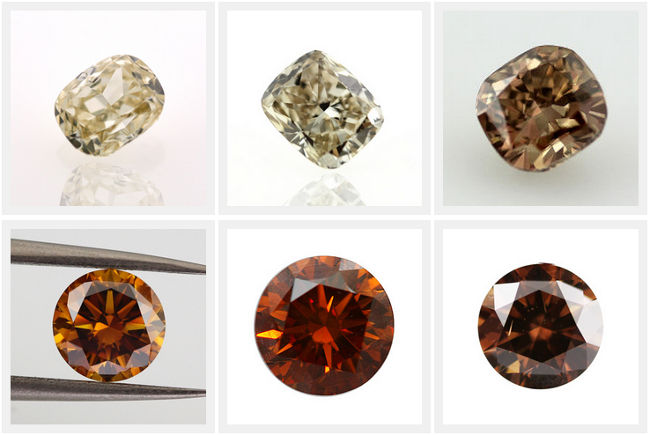
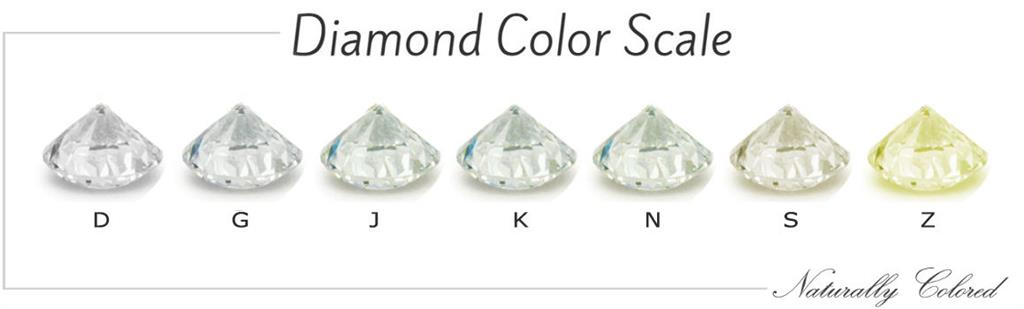
Diamonds are available in a spectrum of colors, but the most desirable ones are virtually colorless. The Gemological Institute of America (GIA) grades diamond color on a scale from D (colorless) to Z (noticeable color). While a D-grade diamond is exceptionally rare and prized for its lack of color, diamonds in the near-colorless range (G to J) are often favored for their subtle tones, as they offer excellent value without compromising on beauty.
Clarity: The Window into Perfection
Clarity refers to the presence or absence of internal and external flaws, known as inclusions and blemishes, respectively. A diamond’s clarity is graded on a scale ranging from Flawless (no visible imperfections under 10x magnification) to Included (imperfections visible to the naked eye). The majority of diamonds fall within the VS (Very Slightly Included) and SI (Slightly Included) ranges, where the inclusions are typically not noticeable to the unaided eye. Selecting a diamond with a clarity grade that suits your preferences and budget is crucial.
Carat Weight: Beyond Size, a Measure of Rarity
Carat weight is often the most apparent aspect of a diamond, representing its size. However, it’s essential to understand that carat weight alone does not determine a diamond’s quality. While larger diamonds are captivating, a well-cut, smaller diamond can exhibit remarkable brilliance and beauty. Remember that the carat weight should be considered alongside the other 3Cs to ensure you’re getting the perfect balance of size and quality.
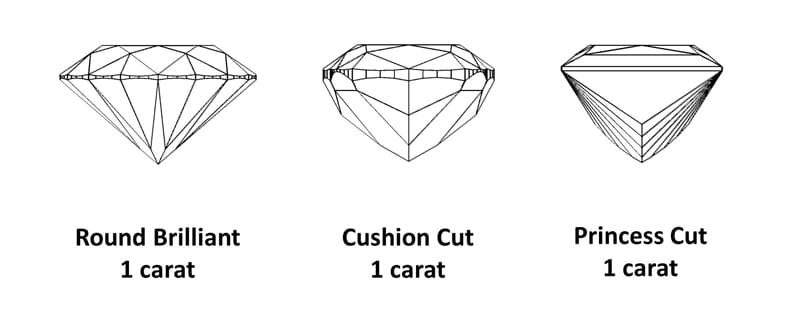
While the 4Cs form the foundation of diamond evaluation, there are additional factors that can influence a diamond’s value and significance. By considering these aspects alongside the 4Cs, you can make a more comprehensive and confident choice when selecting a diamond:
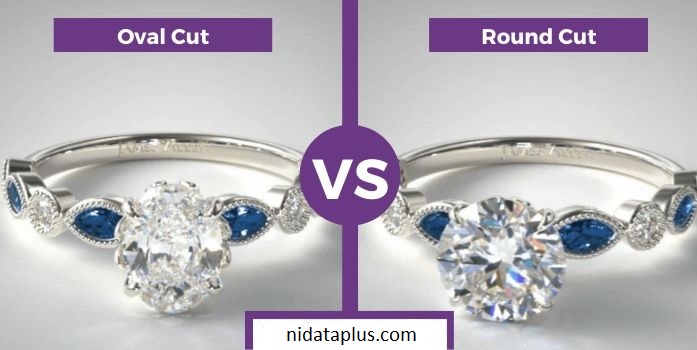
Shape and Style: The shape of a diamond, whether it’s classic round, elegant oval, or intricate princess, contributes to the overall aesthetic of the stone. Choose a shape that appeals to your personal taste and complements the intended jewelry piece.
Brilliance and Fire: Beyond cut quality, a diamond’s ability to exhibit brilliance and fire is crucial. Diamonds with well-proportioned facets and excellent light performance will sparkle beautifully in any setting.
Fluorescence: Some diamonds exhibit fluorescence, causing them to emit a soft glow when exposed to ultraviolet (UV) light. While fluorescence is a personal preference, it’s essential to view a fluorescent diamond under different lighting conditions to determine if you find it visually appealing.
Certification: Always insist on diamonds that come with reputable certifications from renowned gemological laboratories. These certificates validate the diamond’s quality and provide essential details about its characteristics, ensuring transparency and authenticity. You can check more information about this on this Link.
Ethical Sourcing: Consider the ethical origins of your diamond. Opt for jewelers that adhere to responsible sourcing practices and provide conflict-free diamonds, contributing to ethical and sustainable practices in the industry.
The Emotional Value of a Diamond
Beyond the technical aspects, a diamond holds deep emotional value. It symbolizes love, commitment, and significant milestones in life. It’s a gesture of appreciation, a mark of celebration, and a token of lasting memories. As you select a diamond, it’s essential to connect with the emotional significance it carries, embracing the joy and sentiment it represents.
Which of the 4Cs is the Most Important?
While all four Cs are integral to a diamond’s overall quality, the importance of each C can vary based on personal preferences and the intended use of the diamond. For example:
Cut is often considered the most important, as it directly influences the diamond’s sparkle and visual appeal.
Color is essential for those seeking a near-colorless or colorless diamond, while a slight tint may be acceptable for others, especially if it aligns with a lower budget.
Clarity is significant, but diamonds with slight imperfections (VS and SI grades) can offer excellent value without compromising on appearance.
Carat Weight should be balanced with cut, as a well-cut diamond will exhibit superior brilliance regardless of its size.
Using the 4Cs to Buy the Perfect Diamond: Practical Insights
Define Your Priorities: Decide which of the 4Cs matter most to you and your budget. If brilliance is paramount, focus on cut; if size is a priority, balance carat weight and cut.
Understand the Grades: Familiarize yourself with the grading scales for cut, color, clarity, and carat weight. This knowledge will help you interpret a diamond’s characteristics based on its certification.
View Diamonds in Person: When possible, view diamonds in different lighting conditions to observe how they sparkle and showcase their color. If purchasing online, ensure the vendor provides detailed images and certificates from reputable gemological laboratories.
Seek Expert Guidance: Consult with experienced jewelers or gemologists who can provide valuable insights and help you find a diamond that meets your preferences and budget.
Ethical Sourcing and Certification: Choose a reputable jeweler that adheres to ethical sourcing practices and provides certification from trusted gemological laboratories, such as GIA or AGS.
Conclusion
Mastering the 4Cs of diamonds is essential for making an informed and secure purchase. Each C contributes to a diamond’s unique beauty, and by understanding their significance and how to prioritize them based on your preferences, you’ll be well-equipped to select the perfect diamond that resonates with your style, values, and budget. Embrace the knowledge of the 4Cs as your guide to discovering a diamond that will stand as a symbol of enduring beauty and a treasured piece of your collection.…